Highland OrderFlow
Using OrderFlow with WooCommerce
User Guide
🛒 Using OrderFlow with WooCommerce
OrderFlow works alongside WooCommerce to turn online orders into a live operational workflow.
Customers continue to browse products, choose options and complete checkout through your WooCommerce store. Once an order is placed, OrderFlow brings the information needed by your team into the Live Display, where the order can be progressed through each stage of your workflow.
OrderFlow also records workflow timing and stage history against the WooCommerce order, giving you a connected view of the customer order and its operational progress.
Before you begin: Complete the OrderFlow initial configuration and make sure WooCommerce is installed and configured for your store.
1. The customer places an order
Customers order through your WooCommerce store in the normal way.
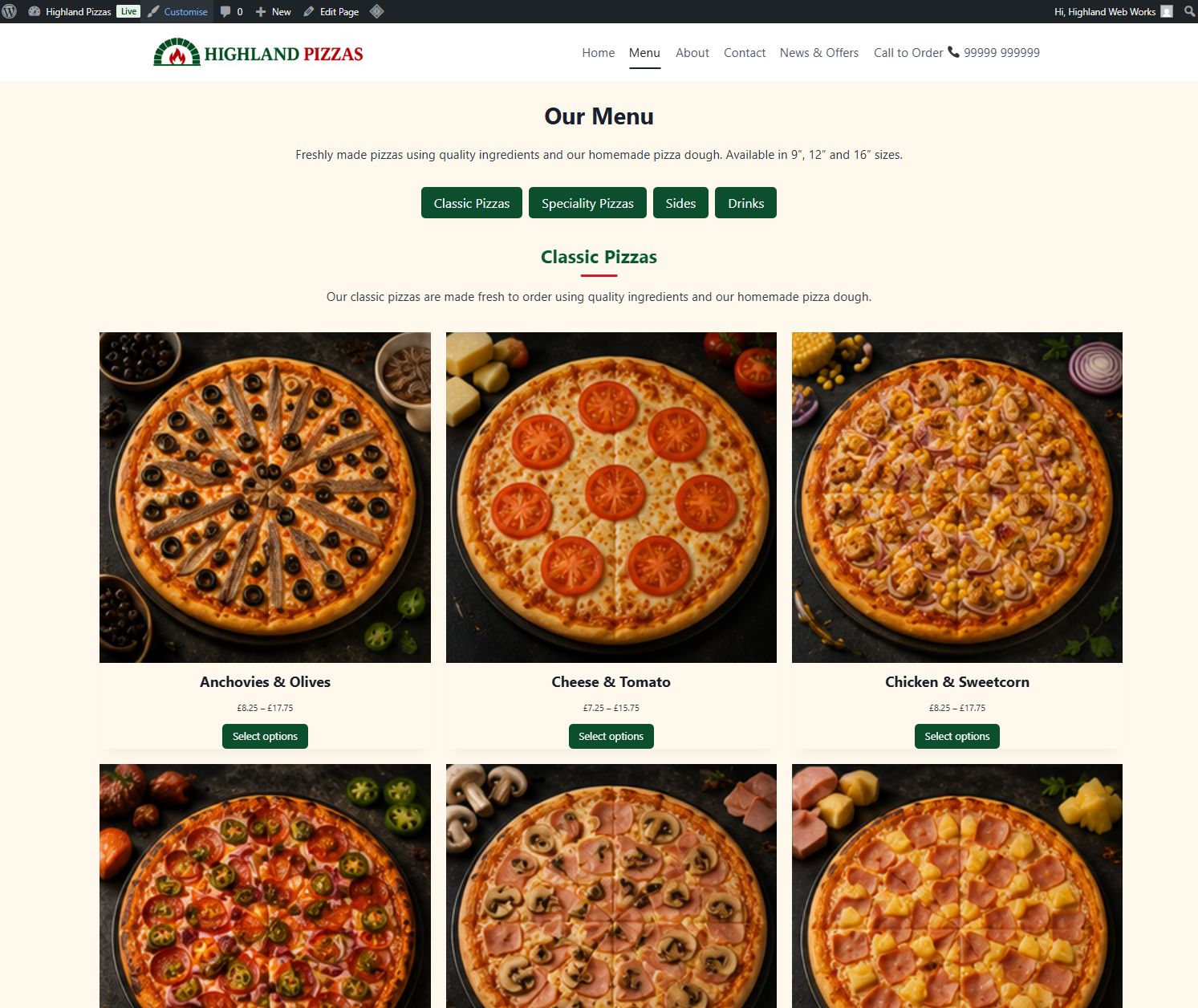
They can browse your menu or product catalogue and select the product they want to order.
WooCommerce remains responsible for your products and the online ordering experience. Your existing product categories, prices, images and product configuration continue to be used.
Product options and variations
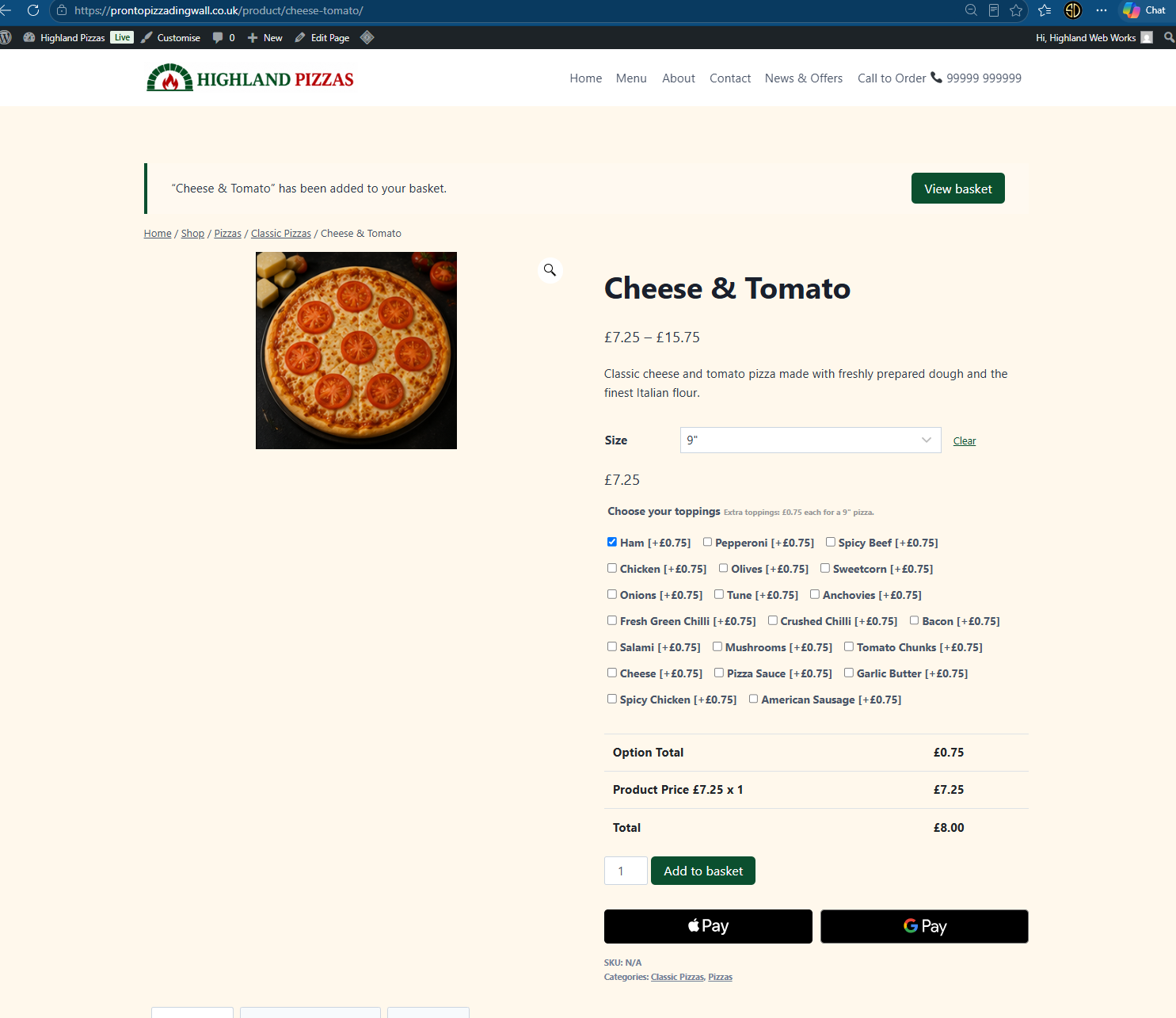
Customers can select the WooCommerce options available for a product before adding it to their basket.
Depending on how your store is configured, these might include:
- product variations such as size
- toppings or extras
- quantities
- other product options
In this example, the customer has selected a 9″ Cheese & Tomato pizza and added Ham as an extra topping.
The selected options are retained with the WooCommerce order and can be shown to staff on the OrderFlow Live Display.
Product information: OrderFlow uses the information recorded against the WooCommerce order. Configure your products and their available options in WooCommerce as normal.
2. The customer reviews their basket
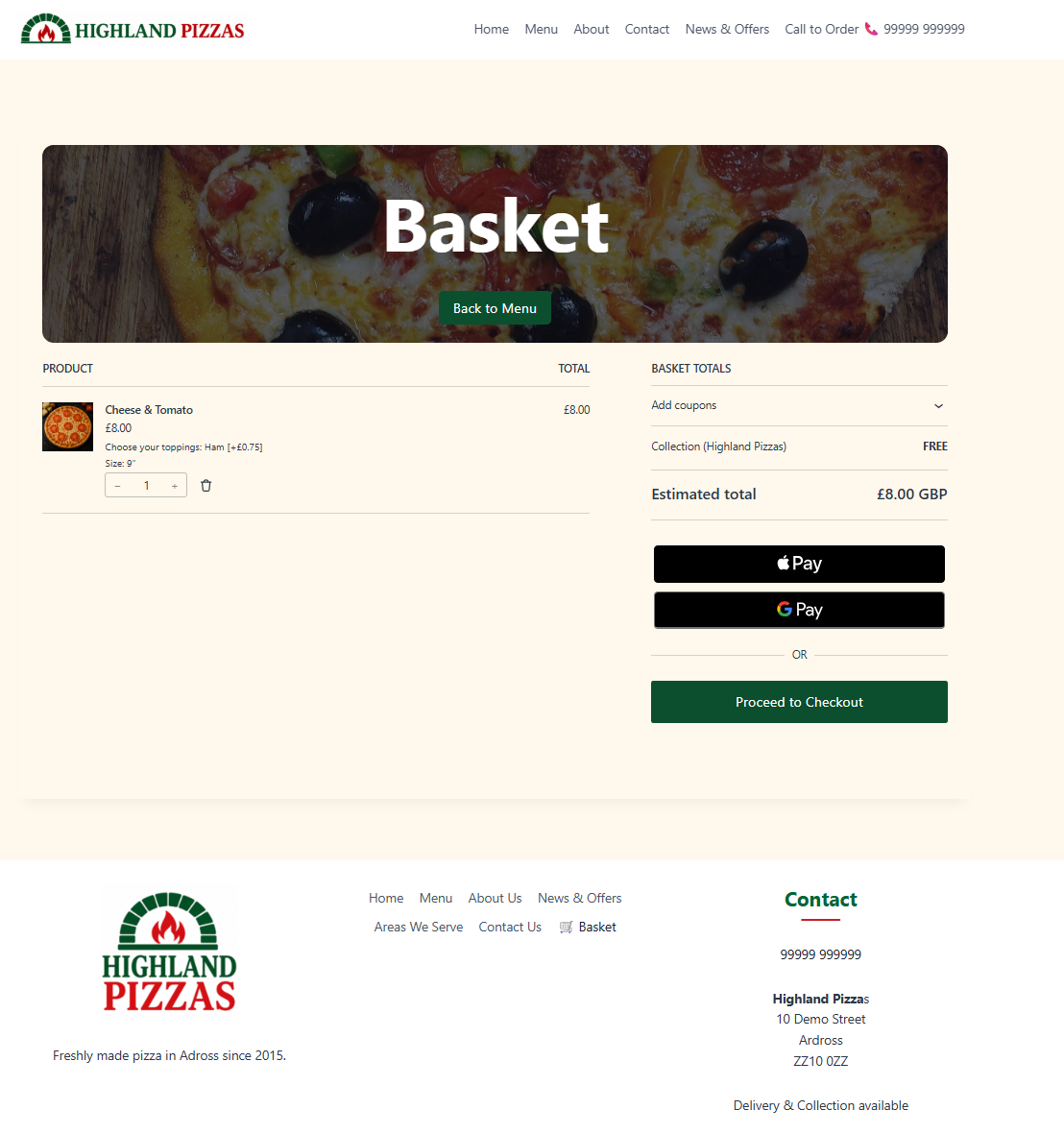
The WooCommerce basket shows the products, options and quantities selected by the customer.
Customers can make any necessary changes before proceeding to checkout.
OrderFlow does not change the normal WooCommerce basket process.
3. Checkout
The customer completes checkout using your configured WooCommerce checkout.
Depending on your store configuration, WooCommerce can collect information such as:
- contact details
- collection or delivery information
- billing details
- payment method
- coupons
- order totals
In this example, the customer is placing a collection order.
WooCommerce handles checkout: OrderFlow does not replace WooCommerce’s basket, checkout or payment processing. It uses the resulting WooCommerce order as the basis for the operational workflow.
4. The order is created
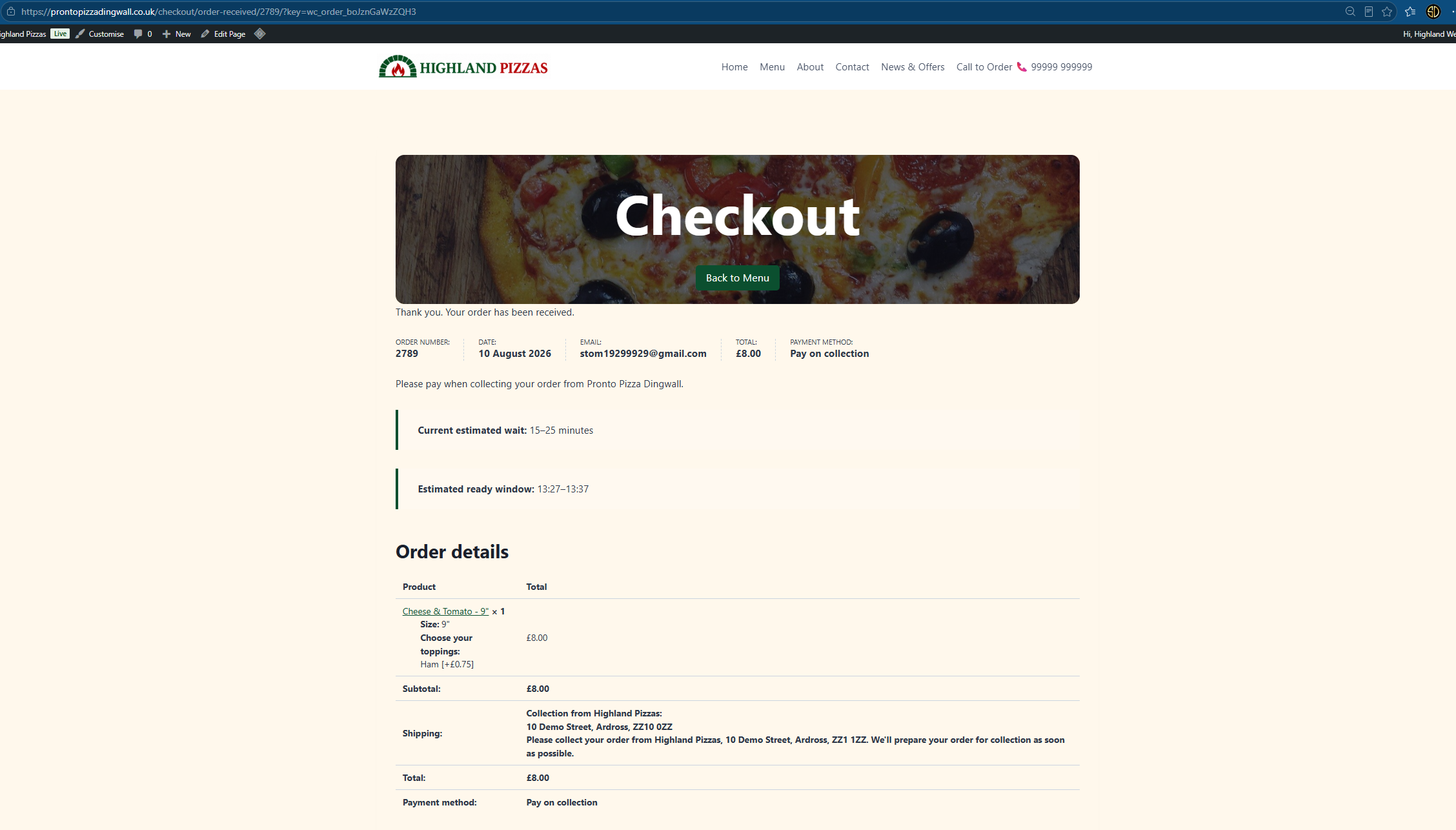
When checkout is completed successfully, WooCommerce creates the order.
The normal WooCommerce order confirmation information remains available to the customer.
Where OrderFlow customer estimates are available, the confirmation can also provide operational information such as the current estimated wait and estimated ready window.
In this example:
Order: #2789
Ordered: 13:12
Order type: Collection
Total: £8.00
Current estimated wait: 15–25 minutes
Estimated ready window: 13:27–13:37
This gives the customer an immediate indication of when their order is expected to be ready.
5. The order enters OrderFlow
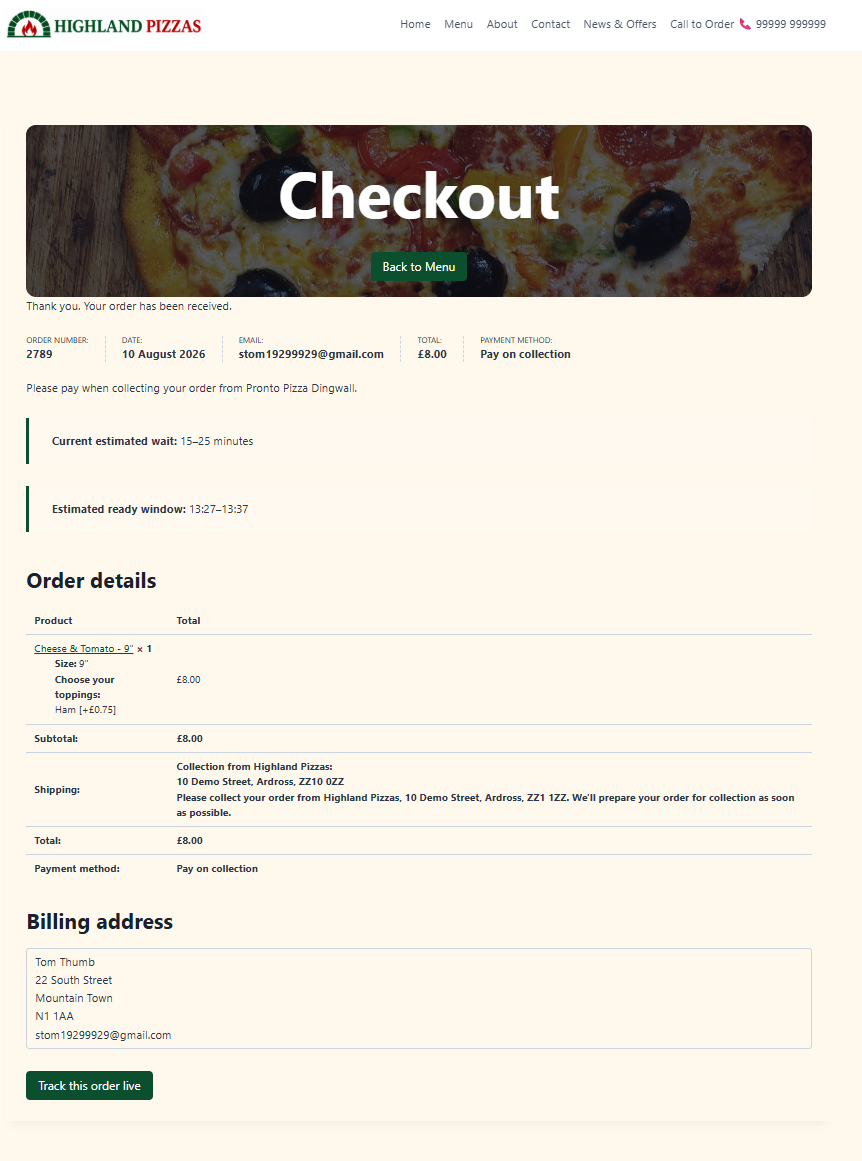
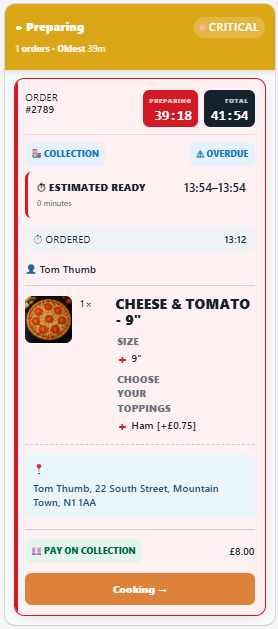
The WooCommerce order is brought into the OrderFlow workflow and appears in the first stage of the Live Display.
In this example, order #2789 has entered the New Order stage.
The order card brings together the information staff need to process the order, including the customer and product information recorded by WooCommerce.
For this order, staff can see:
- order #2789
- Collection
- estimated ready time
- time ordered
- customer name
- Cheese & Tomato – 9″
- Ham topping
- customer/address information
- Pay on collection
- £8.00 total
This allows operational staff to work primarily from the Live Display rather than repeatedly opening individual WooCommerce orders.
One order, two purposes: WooCommerce remains the ecommerce order record, while OrderFlow provides the live operational view used to process that order.
6. Staff progress the order
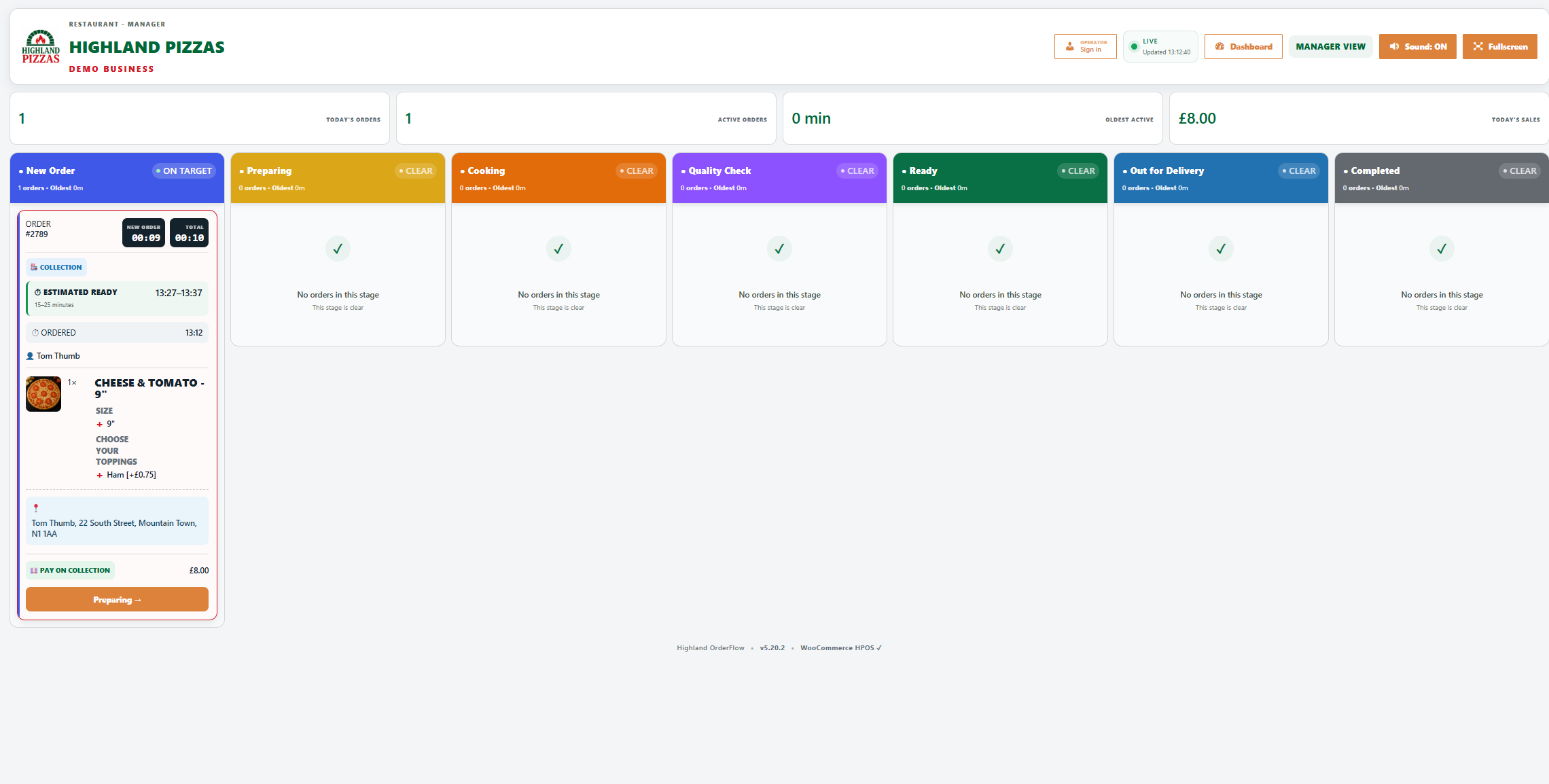
Staff move the order through the workflow from the Live Display.
The action shown at the bottom of an order card indicates where the order can go next.
For example:
New Order → Preparing
Once moved, the order appears in the Preparing stage and OrderFlow begins recording the time spent there.
Staff continue progressing the order as the work is carried out.
For example:
New Order → Preparing → Cooking → Quality Check → Ready → Out for Delivery → Completed
The exact stages and permitted movements depend on the workflow you have configured.
Workflow configuration: Stage names, timing targets and allowed next stages are configured under OrderFlow → Workflows.
7. The customer can follow the order
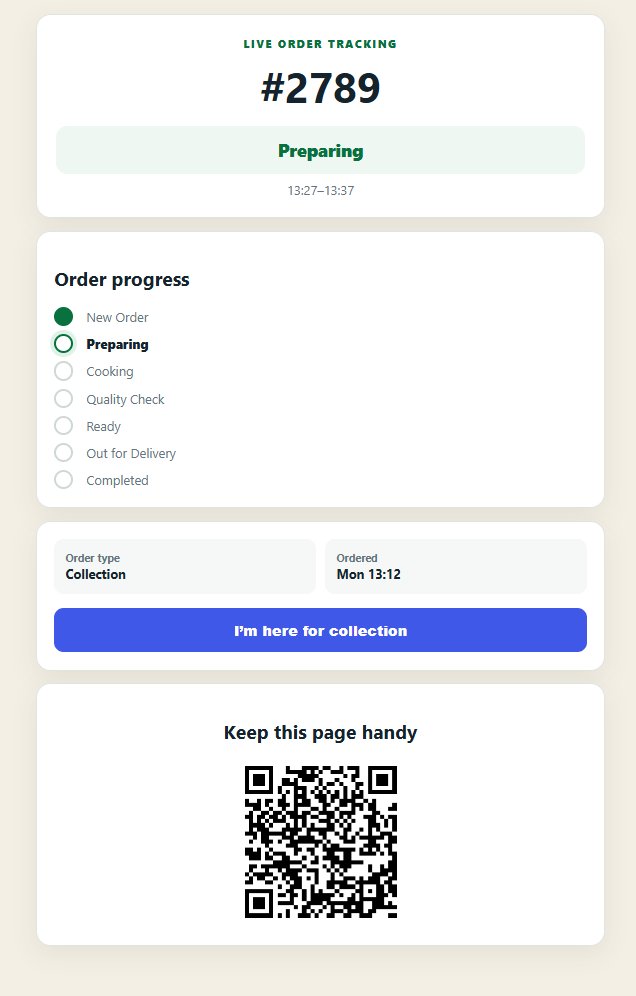
Where customer order tracking is available, customers can follow the progress of their order from a customer-facing tracking page.
The tracking page shows the current stage and the order’s progress through the workflow.
For order #2789, the customer can see that the order is currently:
Preparing
and has an estimated ready window of:
13:27–13:37
The progress display provides a simple view of the operational stages without exposing the internal Live Display.
As staff progress the order in OrderFlow, the customer-facing status can follow that progress.
Collection arrival
For collection orders, the tracking page can also provide an:
I’m here for collection
action where available.
This gives the customer a convenient way to indicate that they have arrived to collect their order.
The tracking page can also include a QR code so the customer can easily retain or reopen their order tracking information.
8. View the OrderFlow information in WooCommerce
OrderFlow does not replace the WooCommerce order.
You can still open the order from:
WooCommerce → Orders
and use the normal WooCommerce order management screen.
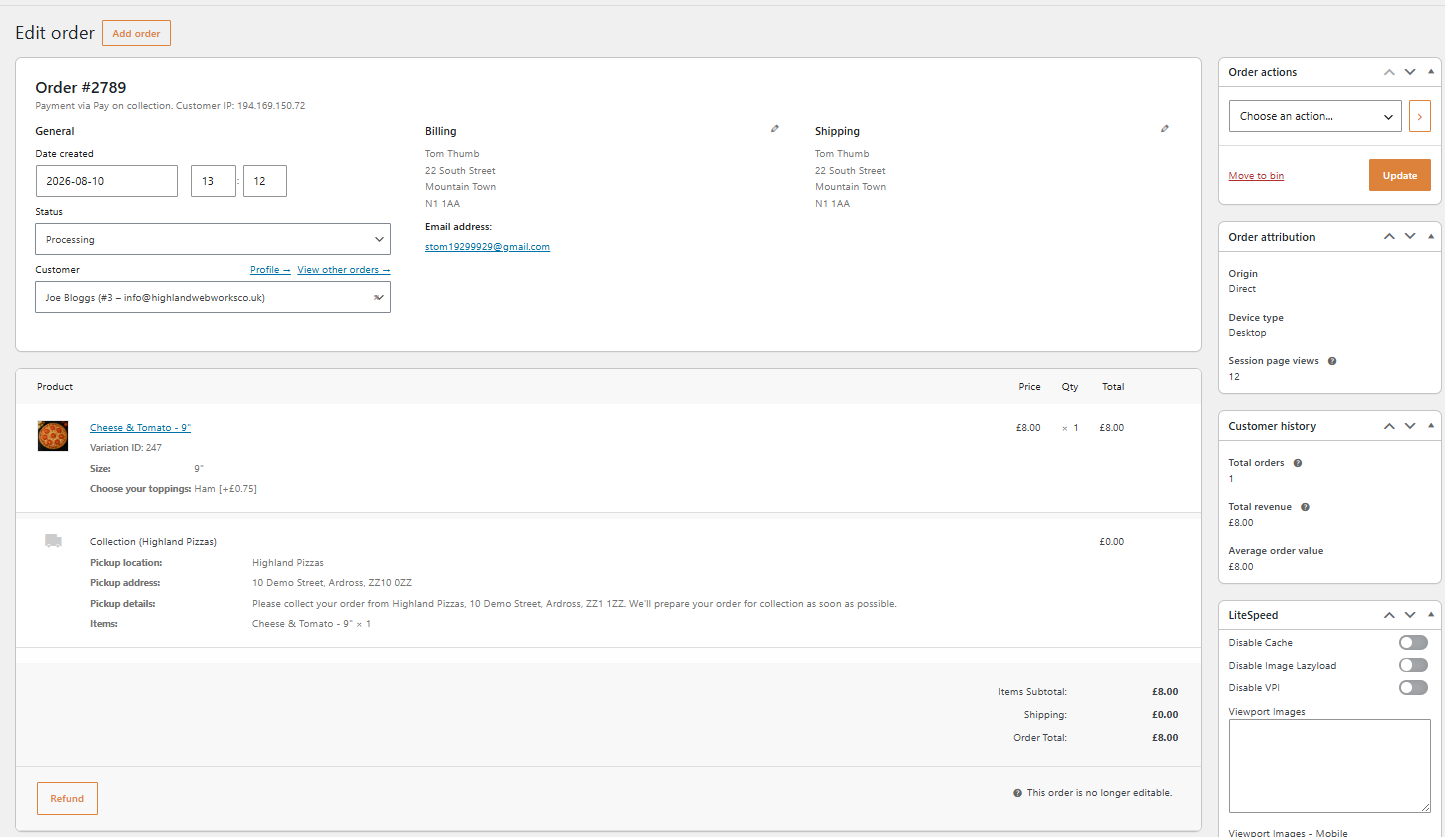
The original ecommerce information remains available, including:
- WooCommerce order status
- customer and billing information
- shipping or collection information
- products and variations
- selected product options
- quantities and prices
- payment information
- order total
In this example, WooCommerce order #2789 contains the same 9″ Cheese & Tomato with Ham being processed on the OrderFlow Live Display.
This makes it possible to move between the ecommerce and operational views of the same order when necessary.
9. View the OrderFlow Timeline
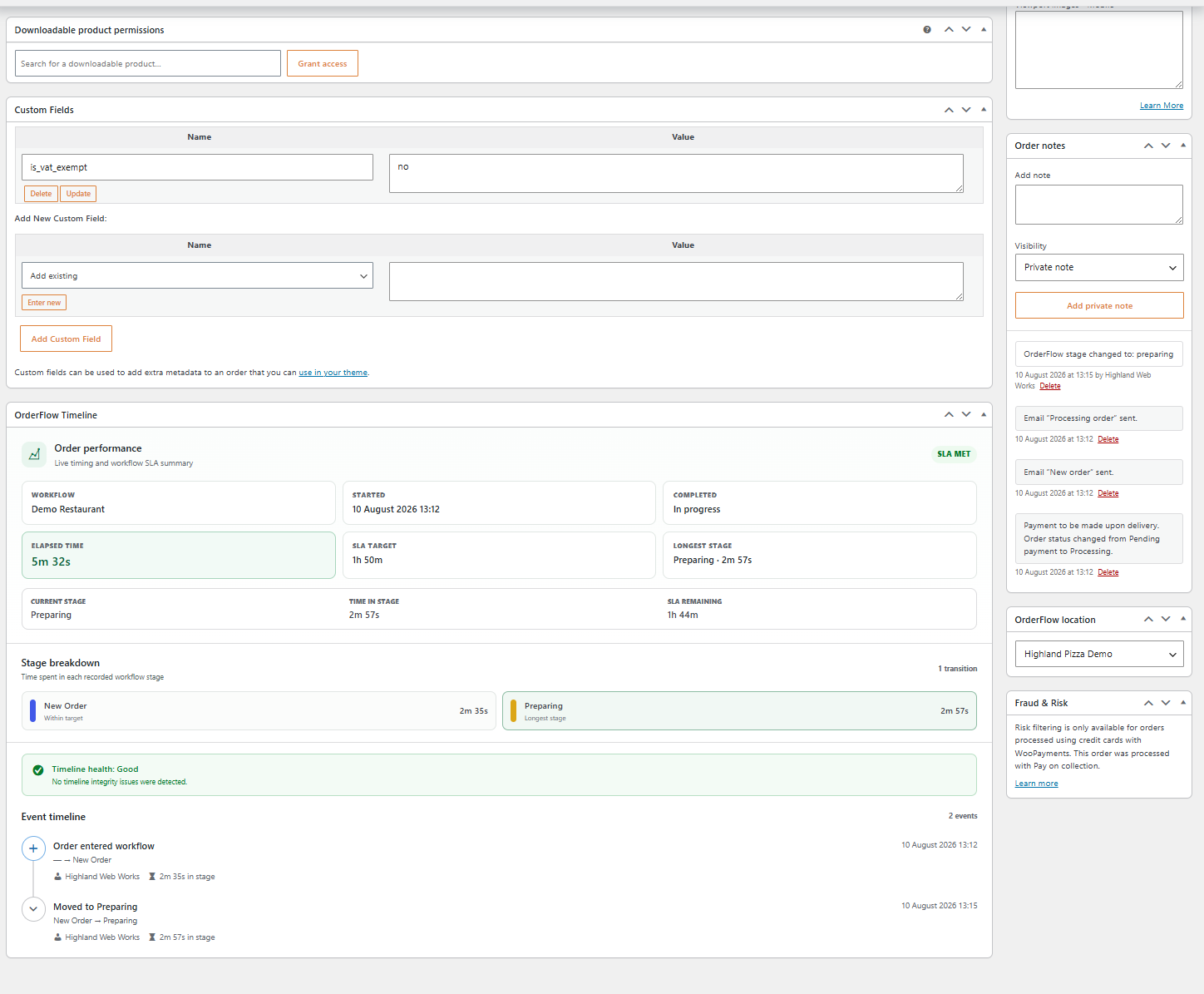
OrderFlow adds an operational timeline to the WooCommerce order screen.
The OrderFlow Timeline provides a detailed record of how the order has progressed through its workflow.
At the top of the timeline, Order performance summarises the current workflow and timing information.
This can include:
Workflow
The workflow being used by the order.
Started
When the order entered the workflow.
Completed
Whether the workflow has finished.
Elapsed time
The total time since the workflow started.
SLA target
The overall timing target for the order.
Longest stage
The stage in which the order has spent the most time.
Current stage
The order’s present workflow stage.
Time in stage
How long the order has been in its current stage.
SLA remaining
The remaining time against the workflow target.
In the example, order #2789 is currently in Preparing, and its workflow is still in progress.
Stage breakdown
The Stage breakdown shows the time recorded against each workflow stage the order has visited.
For example:
New Order — 2m 35s
Preparing — 2m 57s
This makes it easier to see where operational time was spent rather than relying only on the overall order duration.
OrderFlow can also identify information such as the longest stage and whether recorded stage timing remains within its configured targets.
Timeline health
OrderFlow checks the recorded workflow history for timing integrity.
A healthy timeline is shown as:
Timeline health: Good
This indicates that no timeline integrity issues have been detected for the recorded workflow history.
Event timeline
Below the stage breakdown is the detailed Event timeline.
This records workflow events in chronological order.
For example:
Order entered workflow
→ New Order
followed by:
Moved to Preparing
New Order → Preparing
Each event can include the time of the transition and the operator responsible for the action.
This gives managers a useful operational history when reviewing how an individual order was processed.
10. OrderFlow activity is also recorded in WooCommerce
OrderFlow stage changes can also appear in the standard WooCommerce Order notes.
In the example order, WooCommerce records:
OrderFlow stage changed to: preparing
alongside WooCommerce’s own notes such as payment, status and email activity.
This means the WooCommerce order retains useful context about OrderFlow activity even when it is being reviewed outside the Live Display.
The order can also show its associated OrderFlow location, helping identify which configured operation is responsible for the order.
11. Operations Centre visibility
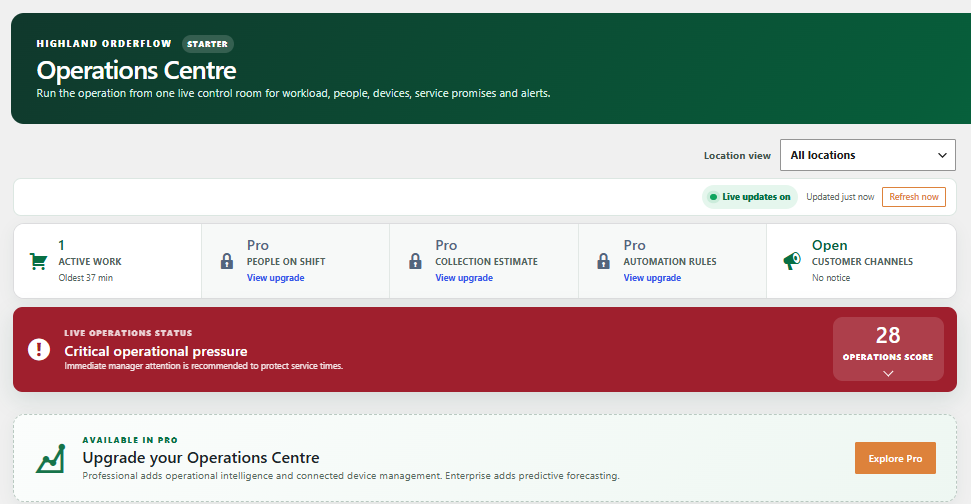
Order activity can also contribute to the Operations Centre activity feed.
The Operations Centre provides a broader operational view than an individual order.
For example, the activity feed can record events such as:
Order #2789 created
alongside other recent operational events.
This allows managers to review activity across the operation without having to inspect each order individually.
Operations Centre: The information and capabilities available in the Operations Centre depend on your OrderFlow edition and configuration.
12. Completing the order
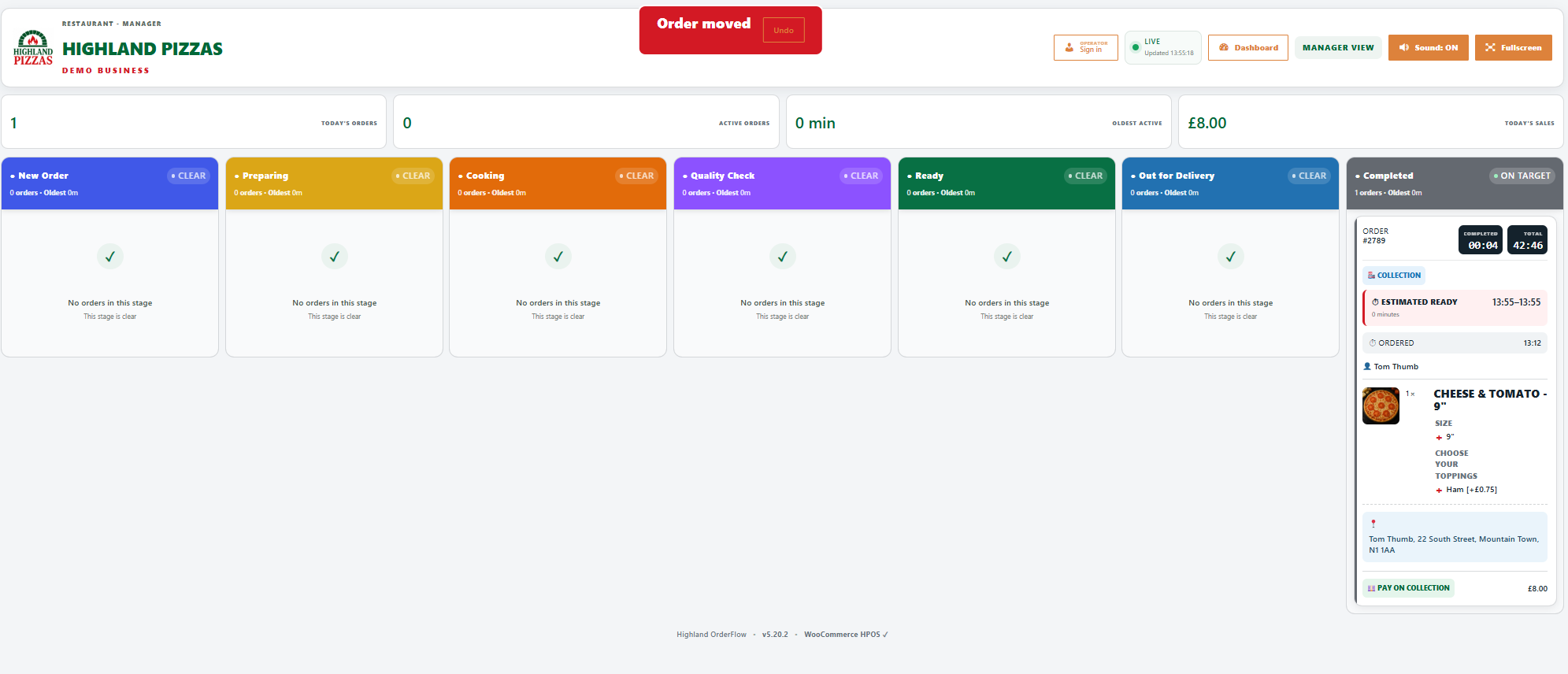
Staff continue progressing the order until it reaches the final stage of its workflow.
For example:
New Order → Preparing → Cooking → Quality Check → Ready → Out for Delivery → Completed
The final stage closes the OrderFlow workflow.
What happens to the associated WooCommerce order depends on the workflow configuration.
If:
Mark WooCommerce order Completed after the final stage
is enabled, reaching the final OrderFlow stage also marks the associated WooCommerce order as Completed.
If the setting is disabled, the WooCommerce order status can be managed separately.
WooCommerce completion: Enable automatic completion only when finishing the OrderFlow workflow should also mean that the ecommerce order has been completed. For operations where the WooCommerce status needs to follow a separate process, leave the option disabled.
Understanding the WooCommerce and OrderFlow relationship
It helps to think of WooCommerce and OrderFlow as two connected parts of the same order journey.
WooCommerce handles the transaction.
It manages the products, customer order, checkout, payment information and ecommerce order record.
OrderFlow handles the operational journey.
It takes the order into a workflow, presents it to staff, records stage movement and timing, and provides operational status information.
Together, the process looks like:
Customer browses products
↓
Adds products and options
↓
WooCommerce basket
↓
WooCommerce checkout
↓
WooCommerce order created
↓
Order enters OrderFlow
↓
New Order
↓
Preparing
↓
Cooking
↓
Quality Check
↓
Ready
↓
Out for Delivery
↓
Completed
At the same time, OrderFlow can provide customer-facing progress information and maintain the operational timeline against the WooCommerce order.
Tips for using WooCommerce with OrderFlow
Keep WooCommerce as your order record. Use WooCommerce for products, checkout, payments and ecommerce order administration, and use OrderFlow for the live operational process.
Design the workflow around the real operation. Your stages should represent meaningful points in fulfilling an order rather than every minor task carried out by staff.
Check the information on your Live Display. Place a test order containing variations and product options and confirm that staff can clearly understand what the customer ordered.
Set realistic timing targets. Customer estimates and operational timing are most useful when your workflow settings reflect how the business actually operates.
Test customer tracking. Progress a test order through each stage and check that the customer-facing experience behaves as expected.
Check completion behaviour. Decide whether reaching the final OrderFlow stage should automatically complete the corresponding WooCommerce order.
Use the timeline when investigating an order. The OrderFlow Timeline provides more operational context than the WooCommerce order status alone, particularly when you need to understand when and how an order moved between stages.